Account Login
This guide explains how to log into your TagOn account, reset your password if you've forgotten it, and change your password for security purposes.
Login
After successfully activating your account through email verification, you can log into the TagOn platform to access your dashboard and projects.
Step 1: Access the Login Screen
- Navigate to the TagOn website in your web browser
- Click on the "Login" button or link
- The login screen will appear
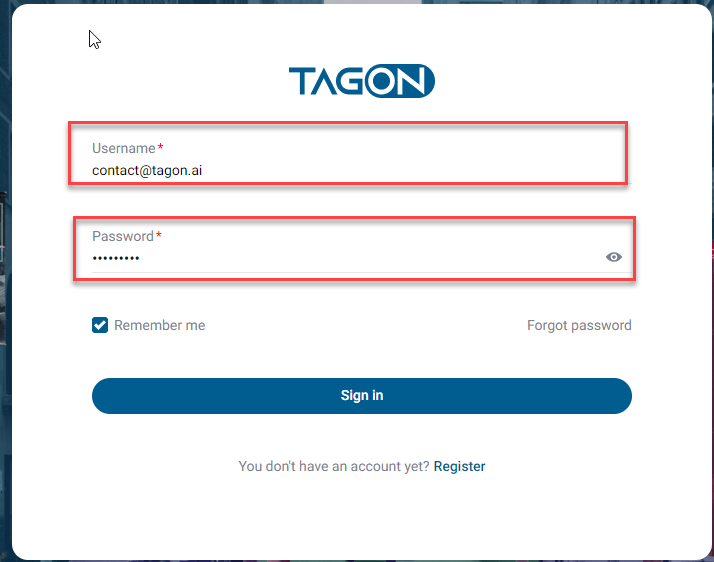
Step 2: Enter Your Credentials
On the login screen, you need to provide the following information:
Username or Email:
- Enter either your registered username or the email address you used during account registration
- Both options are accepted—use whichever you remember
- Ensure you enter the exact username or email (check for typos)
Password:
- Enter your account password
- Passwords are case-sensitive, so check your capitalization
- Make sure there are no extra spaces before or after your password
Step 3: Complete Login
- After entering both your username/email and password, click the "Login" button
- The system will verify your credentials
- Upon successful authentication, a success message will be displayed
- You will be automatically redirected to the "My Projects" screen, which serves as your main dashboard
Tips:
- Make sure Caps Lock is off if typing manually
- Verify you're using the correct account credentials
- If login fails, double-check your username/email and password
- Contact support if you continue to experience login issues
Reset Password
This function helps Annotator users reset their account password in case they forget their password. The process requires access to your registered email address.
If you've forgotten your password, follow these steps to reset it:
Step 1: Request Password Reset
- On the login screen, click on the "Forgot password" link or button
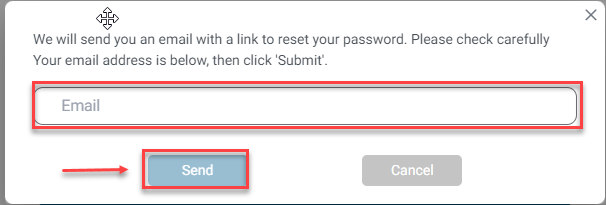
- A popup dialog will appear prompting you to enter your registered email address
-
Enter Your Email:
- Type the exact email address you used during account registration
- This must match the email address in the system's records
- Double-check for any typos
-
Submit Request: Click the "Send" button to submit your password reset request
-
Cancel Option: If you remember your password or want to return:
- Click the "x" (close) button in the top-right corner, or
- Click the "Cancel" button
- This will close the popup and return you to the login screen
Step 2: Check Your Email
After submitting your request:
- Open the email inbox for the address you entered
- Look for an email from TagOn with password reset instructions
- Check Spam Folder: If you don't see the email in your inbox, check your spam or junk mail folder
- The email will contain a "Reset password" button or link
Important: Password reset links are typically valid for a limited time (usually 24 hours). If the link expires, you'll need to request a new password reset.
Step 3: Set Your New Password
- In the email, click on the "Reset password" button or the provided link
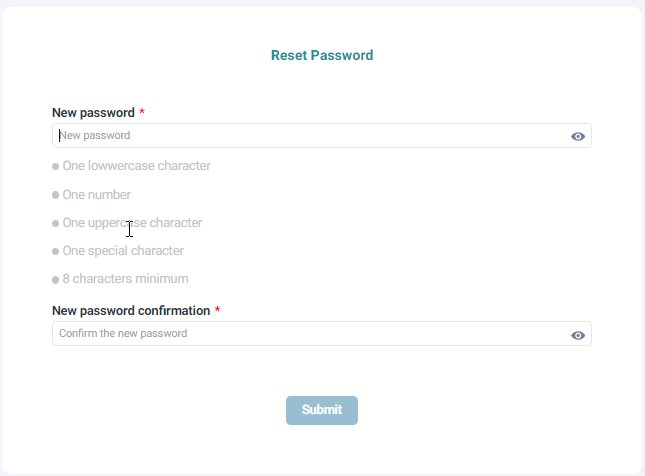
- You will be redirected to the Reset Password screen in your browser
-
Enter New Password:
- Type your new password in the "New password" field
- Choose a strong password that meets TagOn's requirements (minimum length, mix of characters, etc.)
-
Confirm New Password:
- Re-enter your new password in the "Confirm new password" field
- This must exactly match the password you entered in the first field
-
Submit: Click the "Confirm" button to finalize your password reset
Step 4: Complete the Process
- After clicking "Confirm", a success message will appear confirming that your password has been reset

- Click the "Login" button or link to return to the login screen
- Log in using your username/email and your new password
- Verify that you can successfully access your account
Security Reminder: After resetting your password, consider updating it in any password managers you use.
Change Password (While Logged In)
This function allows Annotator users to change their account password while logged in. Use this feature if you suspect your account has been compromised, want to update your password for security purposes, or simply prefer to change it regularly.
If you want to change your password while you're already logged into your account, follow these steps:
Step 1: Access Password Settings
- Log Into Your Account: Ensure you're successfully logged into the TagOn platform
- Open Account Menu: In the top right corner of the screen, click on your account name or profile icon
- Select Password: From the dropdown menu, click on "Password"
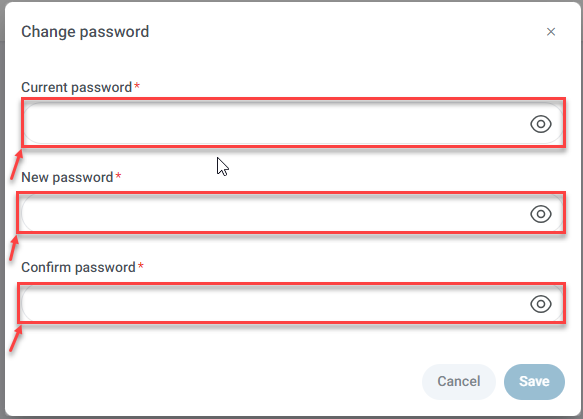
- Change Password Dialog: A "Change Password" popup will appear
Step 2: Enter Password Information
In the Change Password popup, you need to provide three pieces of information:
-
Current Password:
- Enter your existing account password
- This verifies that you have authorization to change the password
- Must be entered correctly for the change to proceed
-
New Password:
- Enter your desired new password
- Must meet TagOn's password requirements
- Should be different from your current password
- Choose a strong, unique password
-
Confirm Password:
- Re-enter your new password exactly as you typed it in the "New password" field
- This ensures you've typed your new password correctly
- Must match the "New password" field exactly
Step 3: Save Your Changes
- Review Your Entries: Double-check that all information is correct before proceeding
- Click Save: Click the "Save" button to apply your password change
- Success Message: If successful, a confirmation message will appear indicating that your password has been changed successfully
Important: After changing your password, you'll need to use the new password for all future logins. Update any saved passwords in your browser or password manager.
Step 4: Close the Dialog
- After Saving: The popup will typically close automatically after a successful password change
- To Cancel: If you decide not to change your password:
- Click the "x" (close) button in the top-right corner, or
- Click the "Cancel" button
- This will close the popup without making any changes and return you to the previous screen
Security Best Practices:
- Change your password regularly (every 3-6 months)
- Use a unique password that you don't use elsewhere
- Never share your password with anyone
- Log out of shared or public computers immediately after use
- Contact support immediately if you suspect unauthorized access