Account Registration Process
This guide provides detailed instructions for creating a new account on the TagOn platform. The registration process is straightforward and consists of six main steps that will allow you to access the system and begin working as an annotator.
Overview
Before you begin, ensure you have:
- A valid email address that you can access
- A stable internet connection
- A web browser (Chrome, Firefox, Edge, or Safari recommended)
- Basic information ready (full name, contact details)
The entire registration process typically takes 5-10 minutes to complete, depending on how quickly you can access your email for account activation.
Step 1: Access the Registration Link
To get started using the TagOn system, you need to navigate to the official TagOn website.
- Open your preferred web browser
- Navigate to https://test.tagon.vn/ in the address bar
- Press Enter to load the TagOn homepage
Note: Make sure you are accessing the official TagOn website. The URL should be exactly as shown above. If you are redirected to a different page or see any security warnings, please verify the URL before proceeding.
Once the page loads, you will see the TagOn login screen, which is your entry point to the system.
Step 2: Initiate Sign Up Process
On the Login screen, you will see options to either log in with an existing account or create a new one.
- Locate the Sign Up button or link on the login screen
- Click on Sign Up to proceed to the account creation process
- You will be redirected to the Create TagOn Account screen
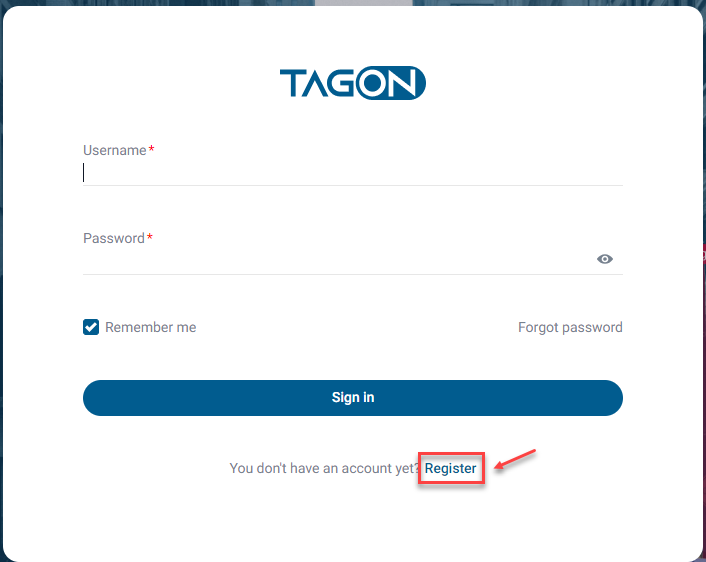
Important: If you already have an account, do not create a new one. Instead, use the Login option to access your existing account. Creating multiple accounts may violate TagOn's terms of service.
Step 3: Select Your Role
The TagOn platform supports multiple user roles, each with different permissions and access levels. You need to select the appropriate role for your intended use of the system.
- On the Create TagOn Account screen, you will see a list of available roles
- Select TagOn Annotator if you intend to work as an annotator/labeler on projects
- After selecting your role, the system will display the Create TagOn Annotator Account screen
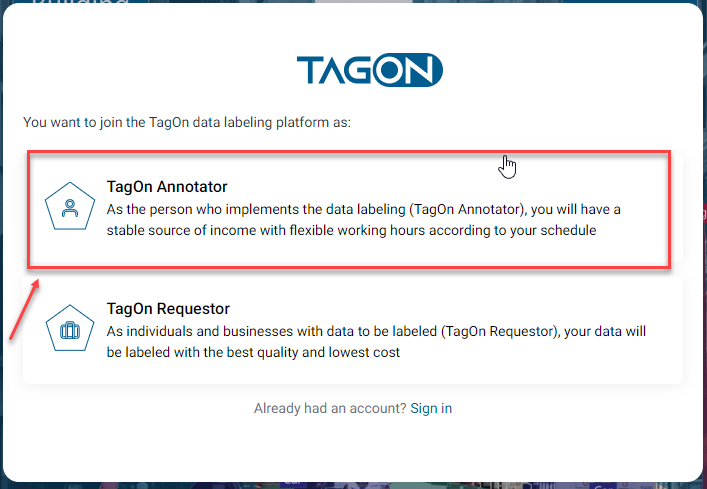
Role Selection Guidelines:
- TagOn Annotator: Choose this role if you want to participate in data labeling and annotation projects
- Other roles may be available depending on your organization's setup
- You cannot change your role after account creation, so choose carefully
Note: If you are unsure which role to select, contact your project administrator or TagOn support for guidance.
Step 4: Provide Registration Information
This is the most critical step in the registration process. You must provide accurate and complete information to successfully create your account.
Required Information Fields
On the Create TagOn Annotator Account screen, you will need to fill in the following information:
-
Email Address (Required)
- Enter a valid email address that you have access to
- This email will be used for account activation and important notifications
- Ensure the email address is spelled correctly
- Use an email address that you check regularly
-
Password (Required)
- Create a strong password that meets TagOn's security requirements
- Typically, passwords must be at least 8 characters long
- Include a combination of uppercase letters, lowercase letters, numbers, and special characters
- Avoid using easily guessable information (birthdays, names, etc.)
-
Confirm Password (Required)
- Re-enter your password exactly as you typed it in the Password field
- This ensures you have entered your password correctly
-
Full Name (Required)
- Enter your legal full name as it appears on official documents
- This name will be used for account verification and payment processing
-
Additional Information (May be required)
- Depending on the system configuration, you may need to provide additional details such as:
- Phone number
- Country/Region
- Time zone
- Other profile information
- Depending on the system configuration, you may need to provide additional details such as:

Important Steps Before Submitting
Before clicking Sign Up, ensure you have:
-
Read the Terms of Use
- Carefully review TagOn's Terms of Use and Privacy Policy
- These documents outline your rights and responsibilities as a user
- Make sure you understand and agree to all terms before proceeding
- If you have questions about the terms, contact TagOn support
-
Agree to Terms and Conditions
- Check the box indicating that you have read and agree to the Terms of Use
- This is a mandatory requirement for account creation
- You cannot proceed without accepting the terms
-
Complete CAPTCHA Verification (if prompted)
- Complete the "I'm not a Robot" verification if it appears
- This security measure helps protect the platform from automated account creation
- Follow the on-screen instructions to complete the verification
-
Verify All Information
- Double-check that all required fields are filled correctly
- Verify your email address for typos
- Ensure your password meets all requirements
- Confirm that passwords match in both password fields
Submitting Your Registration
Once all information is entered correctly and you have completed the above steps:
- Click on the Sign Up button
- Wait for the system to process your registration
- Do not refresh the page or navigate away during this process
- You should see a confirmation message indicating that your registration request has been submitted
Common Issues and Solutions:
- Email already exists: If you see this error, you may already have an account. Try logging in instead, or use the password recovery option if you've forgotten your credentials.
- Password doesn't meet requirements: Review the password requirements and create a new password that meets all criteria.
- Invalid email format: Ensure your email address is in the correct format (e.g., username@domain.com).
- Network error: Check your internet connection and try again. If the problem persists, contact support.
Step 5: Activate Your Account via Email
After successfully submitting your registration, TagOn will send an activation email to the address you provided. This email is essential for completing your account registration.
Accessing Your Email
- Open your email application or webmail service
- Log into the email account you used during registration
- Check your inbox for an email from TagOn
- If you don't see the email immediately:
- Wait a few minutes (emails can take 2-5 minutes to arrive)
- Check your spam or junk mail folder
- Verify that you entered the correct email address during registration
- Ensure your email inbox is not full
Email Content
The activation email from TagOn will contain:
- A welcome message confirming your registration
- An account activation link
- Instructions on how to complete the activation process
- Information about next steps after activation
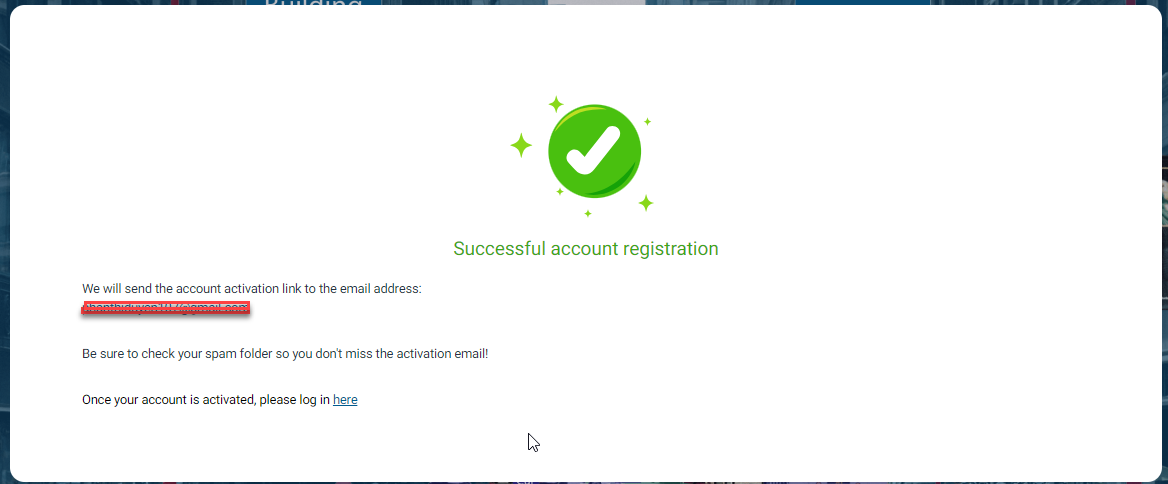
Important Security Notes:
- The activation link is unique to your account and will expire after a certain period (typically 24-48 hours)
- Do not share this activation link with anyone
- If the link expires, you may need to request a new activation email or contact support
Step 6: Complete Account Activation
The final step is to activate your account by clicking the activation link in the email.
- Open the activation email from TagOn
- Locate the Confirm Registration button or link in the email
- Click on Confirm Registration to activate your account
- You will be redirected to a confirmation page in your web browser
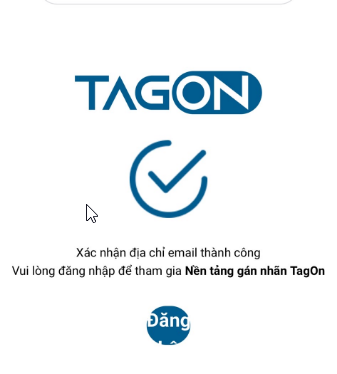
After Successful Activation
Once you see the successful activation screen:
- Account Status: Your account is now active and ready to use
- Login Credentials: You can now log in using the email and password you created during registration
- Next Steps: You will typically be redirected to the login page or directly into the system
What to Do Next
After successfully activating your account, you should:
- Log In: Use your registered email and password to log into the TagOn system
- Complete Your Profile: Navigate to your profile settings and complete all required information, including:
- Personal details
- Banking information (for payment processing)
- Language preferences
- Work experience and education
- Working method preferences
- Explore the System: Familiarize yourself with the TagOn interface and available features
- Search for Projects: Begin searching for and applying to annotation projects that match your skills
Troubleshooting Activation Issues:
- Link doesn't work: Ensure you're clicking the link within the expiration period. If expired, check your email for a new activation link or contact support.
- Page doesn't load: Check your internet connection and try again. Clear your browser cache if the problem persists.
- Already activated: If you see a message indicating your account is already activated, you can proceed directly to login.
Additional Information
Account Security Best Practices
- Use a strong, unique password for your TagOn account
- Never share your login credentials with anyone
- Enable two-factor authentication if available
- Log out of your account when using shared computers
- Regularly update your password
Getting Help
If you encounter any issues during the registration process:
- Check the TagOn documentation and FAQ section
- Contact TagOn support through the official support channels
- Verify that you're following all steps correctly
- Ensure your browser and internet connection are working properly
Important Reminders
- Keep your email address up to date in your account settings
- Check your email regularly for important notifications from TagOn
- Complete your profile information to increase your chances of being selected for projects
- Read and understand TagOn's terms of service and community guidelines