Project List
Overview
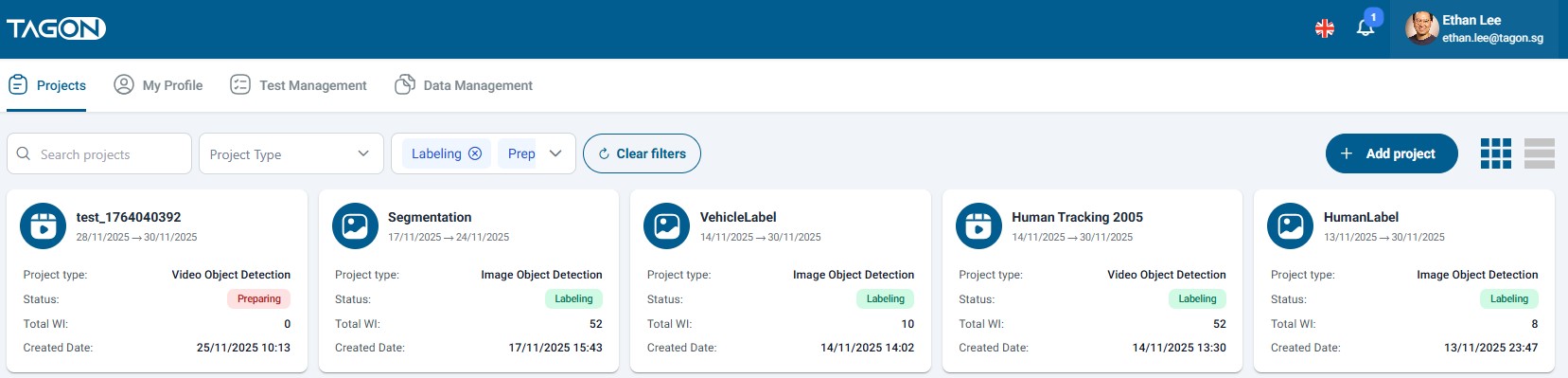
Upon successful login to the Tagon platform, the Project List screen will be automatically displayed. This is the main dashboard where requestors can view, manage, and monitor all their projects in one centralized location. The Project List provides a comprehensive overview of project statuses, progress metrics, and quick access to project management functions.
Project Display
On the Project List screen, all projects created by the requester are displayed in a card-based layout. Each project card contains essential information at a glance, allowing you to quickly assess the status and progress of multiple projects simultaneously. The projects are organized in a grid format, making it easy to scan through your project portfolio.
Search and Filter Options
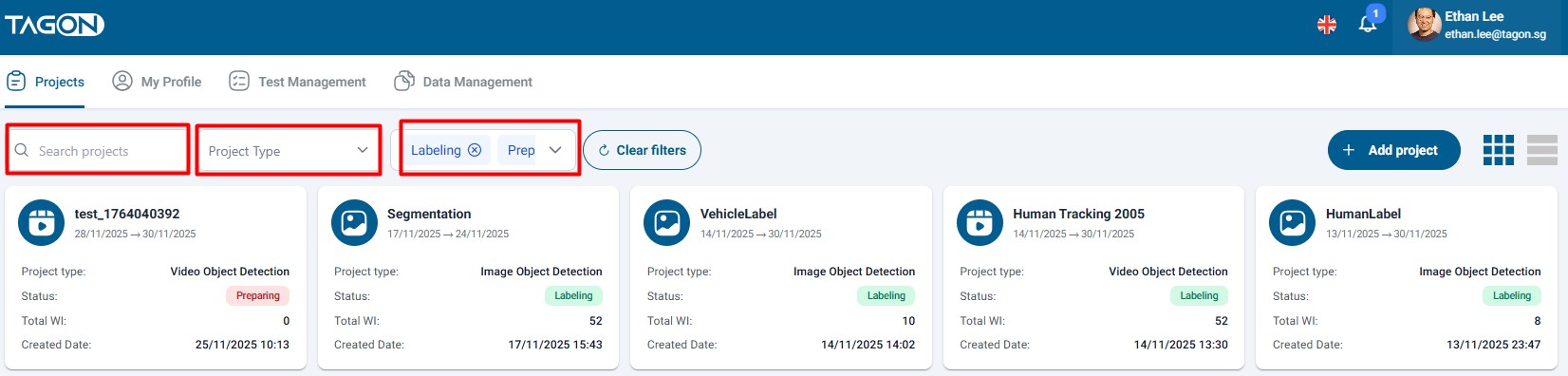
The Project List screen offers powerful search and filtering capabilities to help you quickly locate specific projects, especially when managing a large number of projects. You can search for a project using the following 4 methods:
1. Text Search
- Search by Project Name: Enter the project name or any part of the project name in the "Search project" text box located at the top of the screen. The search is performed in real-time as you type, instantly filtering the displayed projects to match your search query. This is particularly useful when you remember the project name but need to find it among many projects.
2. Filter by Project Type
Filter projects by their specific type to focus on particular categories of work:
- Image Classification: Projects that involve categorizing images into predefined classes or categories
- OCR Recognition: Projects focused on Optical Character Recognition, extracting text from images
- Object Tagging in Image: Projects that require identifying and labeling objects within images
- OCR Correction: Projects involving the correction and validation of OCR results
- Speech to Text: Projects that convert audio recordings into text transcriptions
You can select one or multiple project types to narrow down your view.
3. Filter by Status
Filter projects based on their current operational status:
- In Preparation: Projects that are being set up but not yet active
- Labeling: Projects that are currently in the active labeling phase
- In Evaluation: Projects where labeled data is being reviewed and evaluated
- Closed: Projects that have been completed or terminated
This filter helps you focus on projects that require immediate attention or track projects at specific stages of their lifecycle.
4. Sort Projects
Organize your project list according to different criteria:
- Nearest Deadline: Sort projects by approaching deadlines, helping you prioritize urgent projects
- Farthest Deadline: View projects with the most distant deadlines first
- Newest Date Created: Display recently created projects at the top
- Oldest Date Created: Show the oldest projects first, useful for reviewing long-running projects
Clearing Filters
To reset your search and view all projects again, click the Clear Filter button. This will remove all active filters and sorting options, restoring the default view of all your projects. After clearing filters, you can apply new search criteria using any of the 4 methods described above.
Creating New Projects
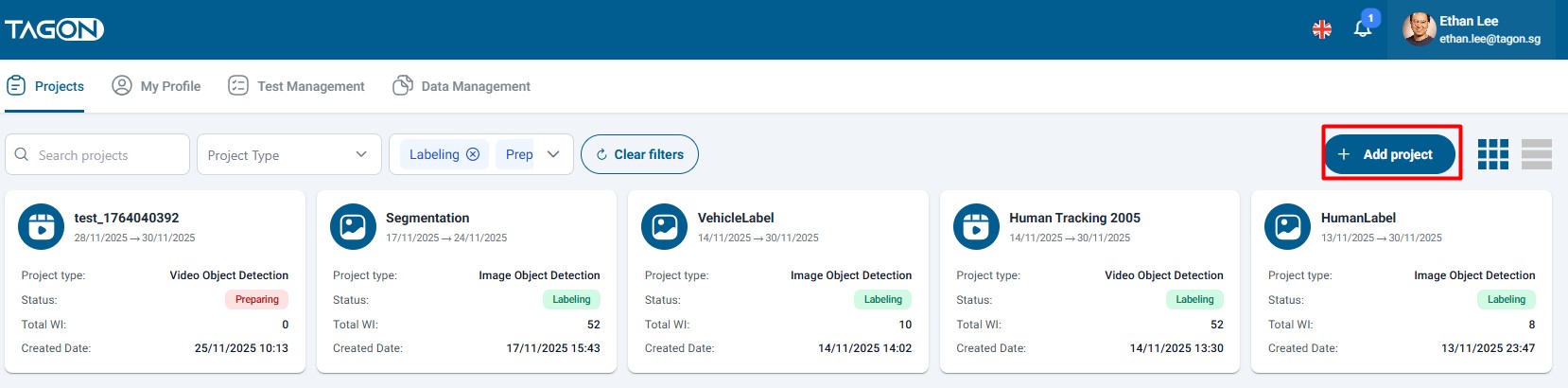
If you don't have any projects yet, or if you want to create a new project, you can click the Create Project button. This will navigate you to the project creation wizard where you can set up a new project following the detailed instructions provided here.
Project Statuses
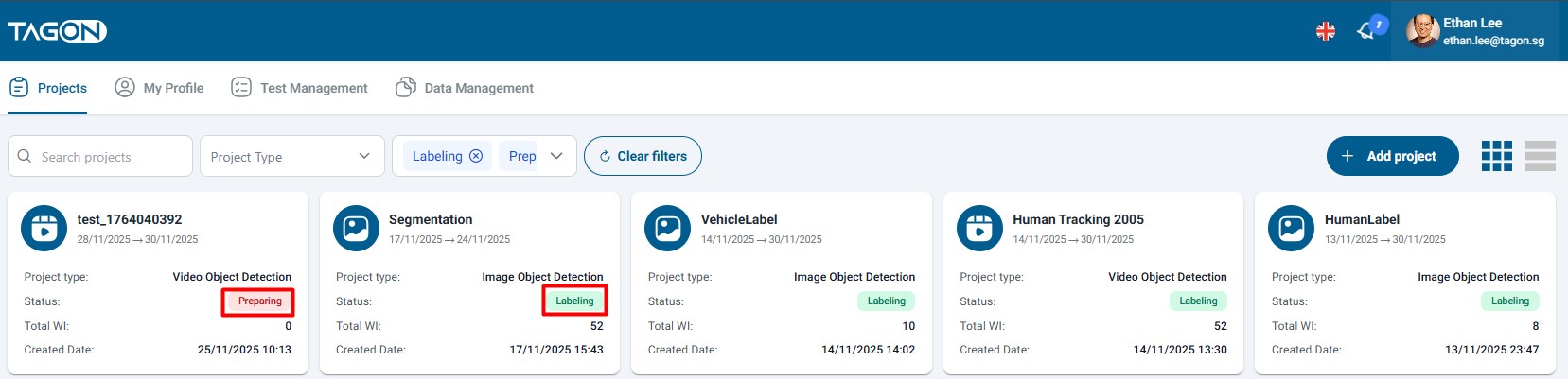
Projects in the Tagon platform progress through a well-defined lifecycle with 4 distinct statuses. Understanding these statuses is crucial for effective project management:
[1] In Preparation
Status: In Preparation
A newly created project that is in the initial setup phase. At this stage:
- The project has been created but no data has been uploaded yet
- No labels or annotations have been assigned
- The project configuration is being finalized
- Annotators cannot yet access the project for labeling work
- You can still modify project settings, upload data, and configure labeling guidelines
This status indicates that the project is being prepared for launch and is not yet ready for annotators to begin work.
[2] Labeling
Status: Labeling
The project is in the active labeling phase. During this status:
- The project is either actively recruiting annotators or has annotators working on labeling tasks
- Data has been uploaded and is available for annotation
- Annotators can access and work on the project
- Labels are being created and submitted by annotators
- You can monitor progress, review submissions, and manage annotator assignments
This is typically the longest phase of a project, where the majority of the annotation work takes place.
[3] In Evaluation
Status: In Evaluation
The project has completed the labeling phase and is now in quality assessment. At this stage:
- Labeled data has been submitted by annotators
- The system is evaluating the quality and accuracy of the labels
- Quality metrics and statistics are being generated
- You can review and validate the labeled data
- Corrections or improvements may be requested before finalizing the project
This status ensures that the labeled data meets quality standards before the project is closed.
[4] Closed
Status: Closed
The project has reached completion or has been terminated. When a project is closed:
- No further actions can be performed on the project
- Annotators can no longer access or submit work
- All data and labels are finalized
- Project results and statistics are available for download
- The project remains visible in your list for reference and historical tracking
Closed projects serve as a record of completed work and can be referenced for future similar projects.
Project Card Information
Each project in the list is displayed as a card containing comprehensive information about the project. The project card displays the following fields:
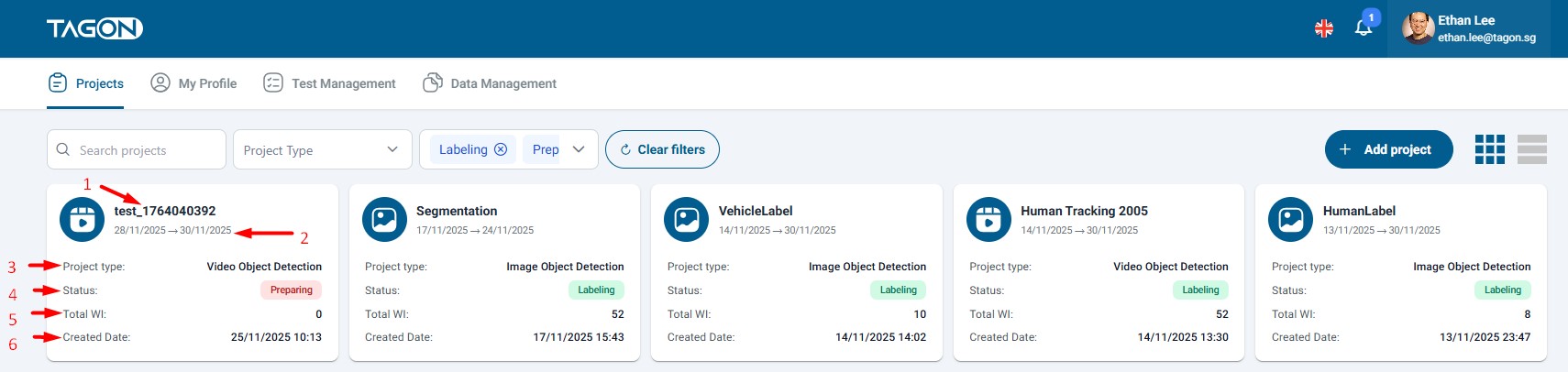
Detailed Field Descriptions
The following table provides detailed explanations of each field displayed on the project card:
| No. | Field | Description |
|---|---|---|
| 1 | Project Name | The unique name assigned to the project during creation. This name helps you identify and distinguish between different projects. Clicking on the project name typically navigates to the detailed project view where you can access full project information and management options. |
| 2 | Start Date - End Date | Displays the project timeline showing when the project started and when it is scheduled to end. The start date indicates when the project became active, while the end date represents the project deadline. This information helps you track project duration and manage timelines effectively. |
| 3 | Project Type | Displays the type of annotation task the project is designed for. This field shows one of the following types: Image Classification, OCR Recognition, Object Tagging in Image, OCR Correction, or Speech to Text. The project type determines the specific tools and workflows available for annotators. |
| 4 | Status | Displays the current operational status of the project at each stage of its lifecycle. The status can be one of: In Preparation, Labeling, In Evaluation, or Closed. This visual indicator provides immediate insight into what phase the project is currently in and what actions are available. |
| 5 | Total WI | Shows the total number of work items (WI) configured for the project. Use this figure to understand project scale, estimate the overall labeling effort, and compare against the remaining WI metric to assess progress. |
| 6 | Created Date | Shows the date and time the project was created/published. Sorting by this field lets you quickly identify the newest projects or review older ones that may require follow-up. |
Best Practices
- Regular Monitoring: Check your Project List regularly to stay updated on project statuses and progress
- Use Filters Effectively: When managing many projects, use the filter and sort options to focus on projects that need attention
- Status Awareness: Keep track of project statuses to ensure smooth transitions between phases
- Cost Management: Monitor the Estimated Cost field to stay within budget and plan for project expenses
- Progress Tracking: Use the Remaining WI metric to assess project completion and identify projects that may need additional resources or attention