Video
Video Object Labeling Guide
1. Main Interface Overview
-
Center (Current Frame Preview)
Displays the current frame at full resolution. When you draw or edit a mask, the changes appear here immediately. Use zoom and pan just as you would in image projects. -
Bottom Timeline and Transport Controls
- Frame Strip: A miniature timeline showing frame numbers and scrubber position.
- Navigation Buttons (←, →): Step backward or forward exactly one frame.
- Play/Pause Button: Preview motion at real speed to verify tracking quality.
- Frame Counter: Shows the exact frame index you are on (useful when communicating with reviewers).
Drag the scrubber for quick jumps, or hold the → key to skim through multiple frames.
-
Right Vertical Toolbar
This column contains everything you need to label and review a frame:- AI-Tracking Tool

- Manual Drawing Tools

- Mask List for selecting and renaming existing masks
- Layer visibility toggles, save/submit buttons, and project info
- AI-Tracking Tool
-
Top-Right Submit Button
A gold button labeled Submit finalizes the entire video. Only press it after every frame has been reviewed and all masks are accurate. The system locks further edits once submission succeeds.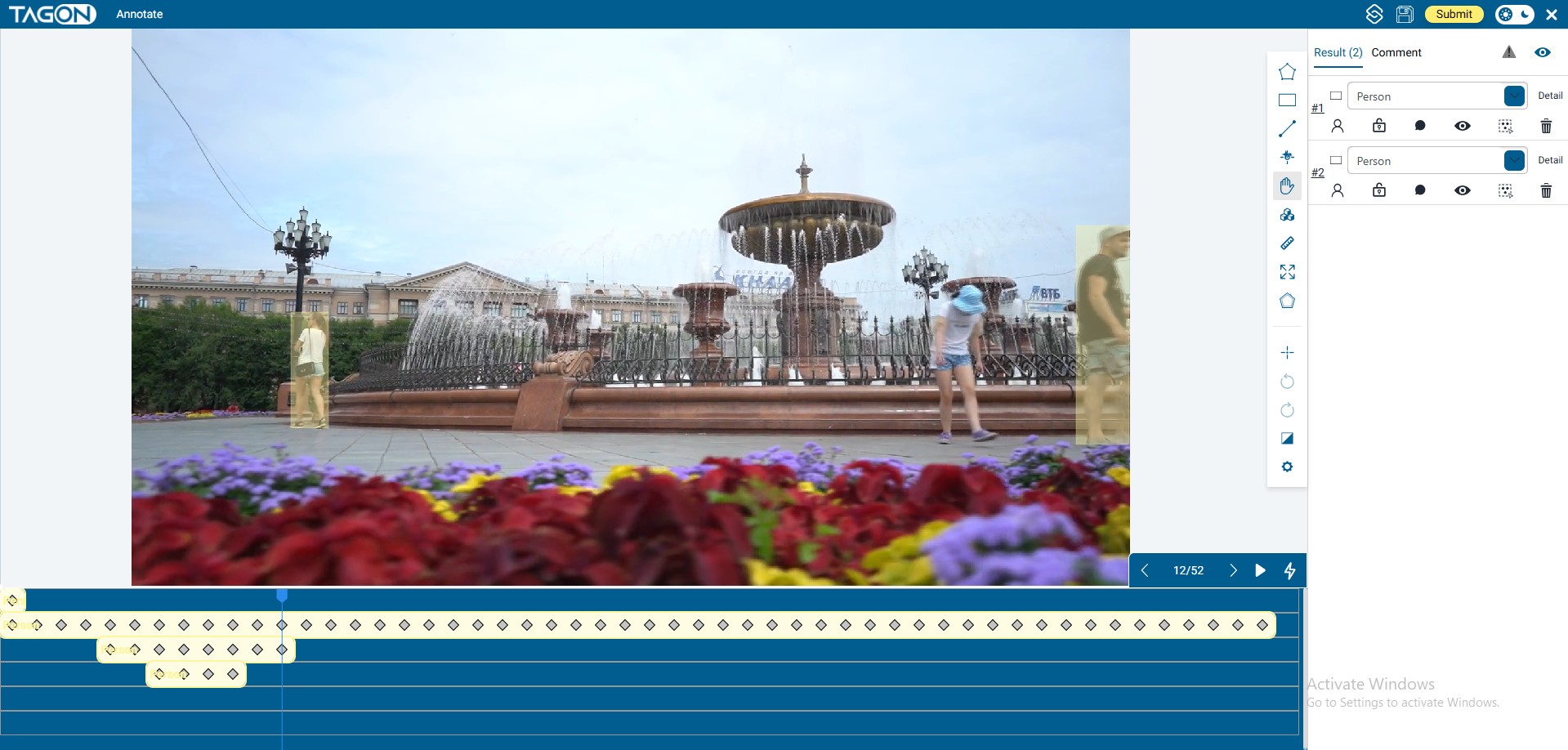
2. Fast Labeling with AI-Tracking (Recommended Workflow)
AI-Tracking analyzes motion between frames and keeps masks aligned automatically. It works best when you follow a consistent routine:
-
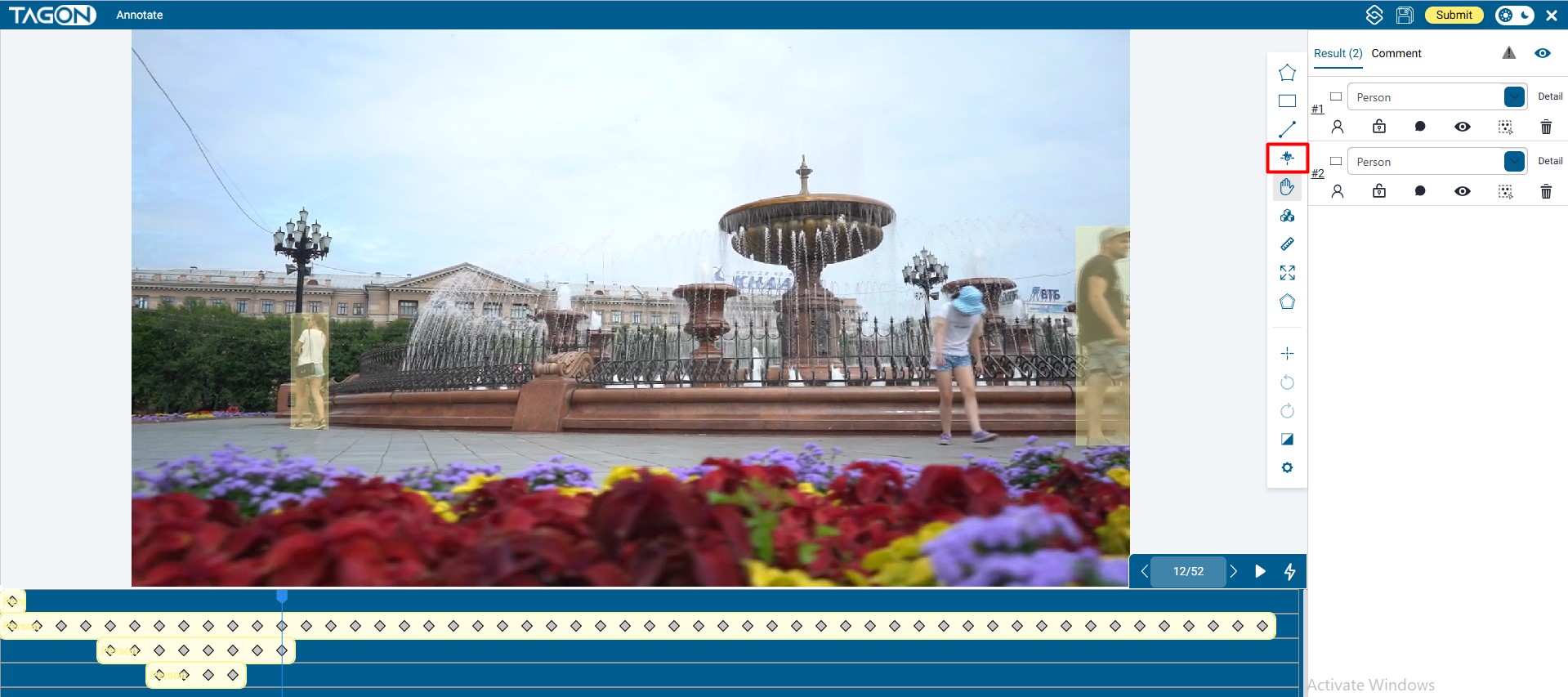
Select the AI-Tracking Tool
Click icon in the right toolbar. -
Click the Center of Each Object
For people, aim for the torso; for vehicles, aim for the cabin/hood area. A single click creates a mask on the current frame and predicts the object’s path for the next four frames. -
Work Frame-by-Frame
- Label every required object in the current frame before moving on.
- Press → (or the on-screen next button) to advance one frame.
- If you skipped an object, the tracker will not create masks for future frames, so catch them immediately.
-
Maintain Tracking Quality
- When a mask drifts, simply click the object again. The system re-centers the mask and recalculates the next four frames, overwriting the old track.
- If the drift happened many frames later, go back to the first incorrect frame, reclick, and then move forward again to let the tracker rebuild.
-
Use Playback for Validation
- Hold → to scrub quickly through a segment and watch masks in motion.
- Press Space to play/pause and confirm that masks stay glued to their targets during movement or occlusion.
-
Repeat Until the Timeline Is Clear
Continue the click → advance → review cycle until the scrubber reaches the final frame. TagOn highlights unreviewed frames, so make sure no section is skipped. -
Final Verification and Submission
- Perform one last pass, paying special attention to hard cuts, rapid motion, or occlusions.
- When satisfied, press the gold Submit button or use Ctrl + Shift + S to upload the entire video for review.
3. Essential Video Labeling Shortcuts
| Shortcut | Function | When to use |
|---|---|---|
| ← / → | Step backward / forward one frame | Default navigation while tracking objects |
| Space | Play / Pause video | Preview motion to ensure masks stay aligned |
| Delete | Delete selected mask | Remove incorrect masks before retracking |
| Ctrl + Z | Undo last action | Undo misclicks or accidental deletions |
| Ctrl + A | Select all masks in the frame | Fast way to copy, delete, or reset everything |
| Ctrl + C | Copy selected mask(s) | Use on repeated poses or near-identical frames |
| Ctrl + V | Paste mask(s) into the next frame | Ideal for slow-moving objects that need minimal adjustment |
| Enter | Finish the current drawing | Close polygons or confirm manual edits |
| Esc | Exit the current tool | Cancel drawing/tracking without saving changes |
| Ctrl + S | Save progress | Trigger frequently—long videos mean more to lose |
| Ctrl + Shift + S | Submit video | Keyboard alternative to the gold Submit button |
| Ctrl + G | Toggle mask borders | Hide outlines temporarily to inspect the source frame |
| Ctrl + I | Show labeling guide overlay | Bring up in-app instructions if you forget a step |
Video labeling rewards discipline: keep the AI-Tracking routine tight, review every frame systematically, and rely on shortcuts to stay in flow. When combined with the interface map above, this process lets you deliver frame-accurate results that stand up to reviewer scrutiny—even on long, complex clips.