Project Duplication
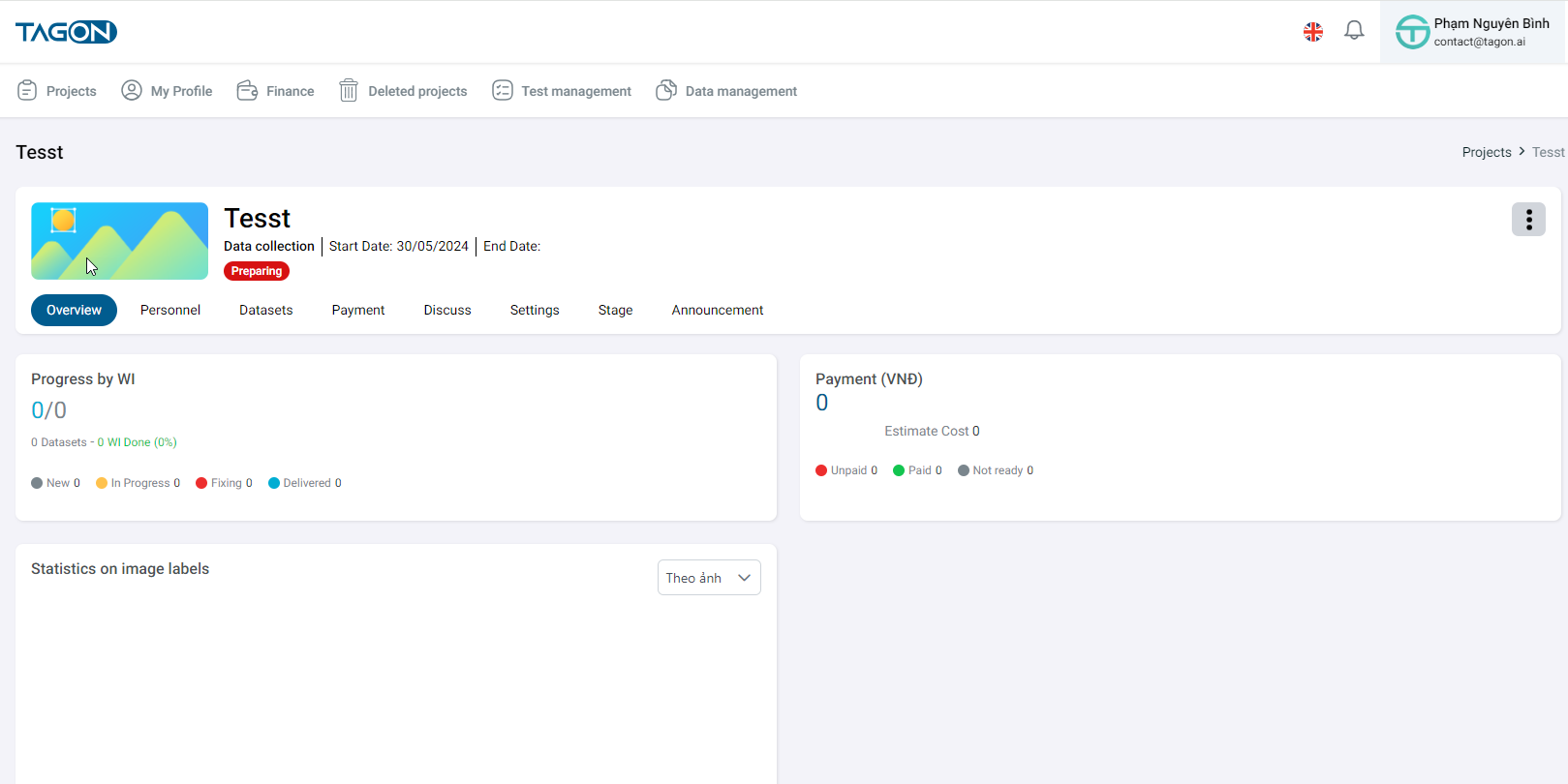
After successfully logging into the project -> Display the Project List screen -> Click on the project -> Display the Project Overview screen -> Click on the three dots icon at the top right corner of the screen
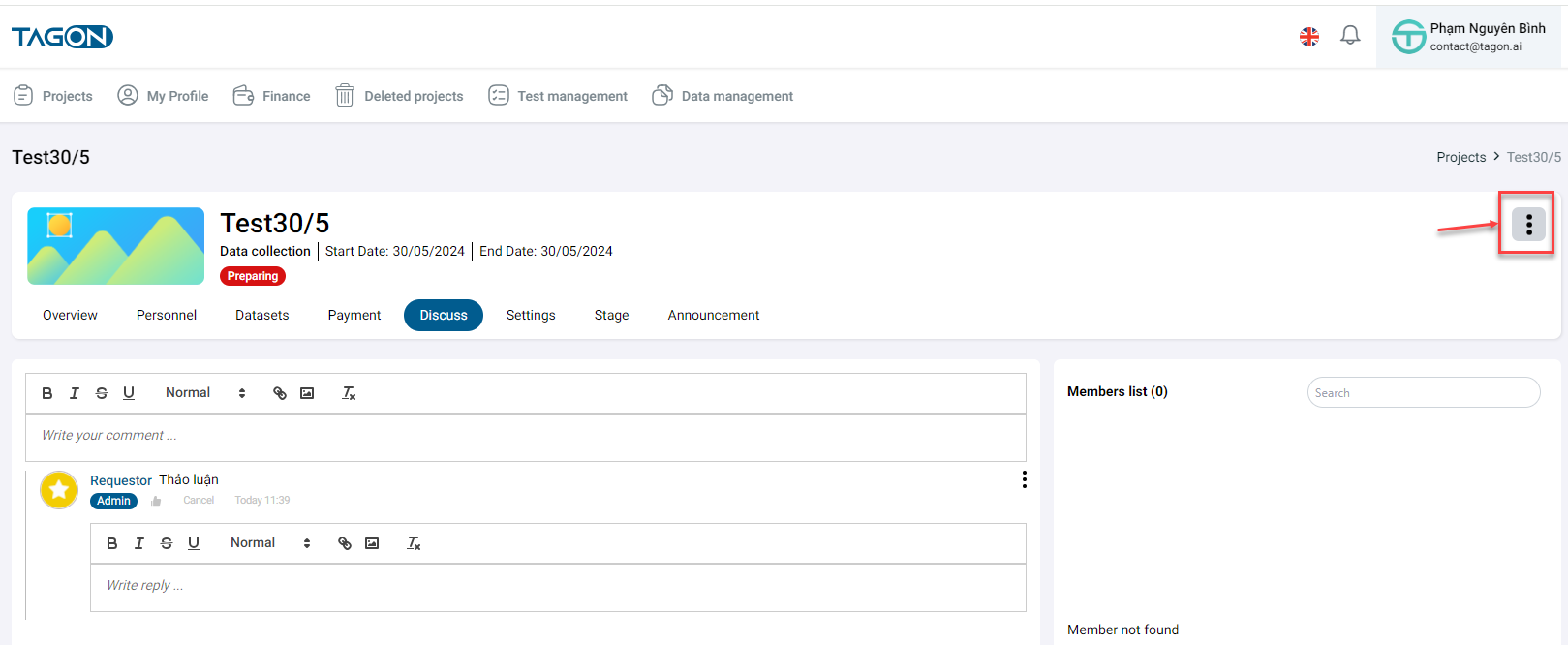
--> Click on Duplicate Project
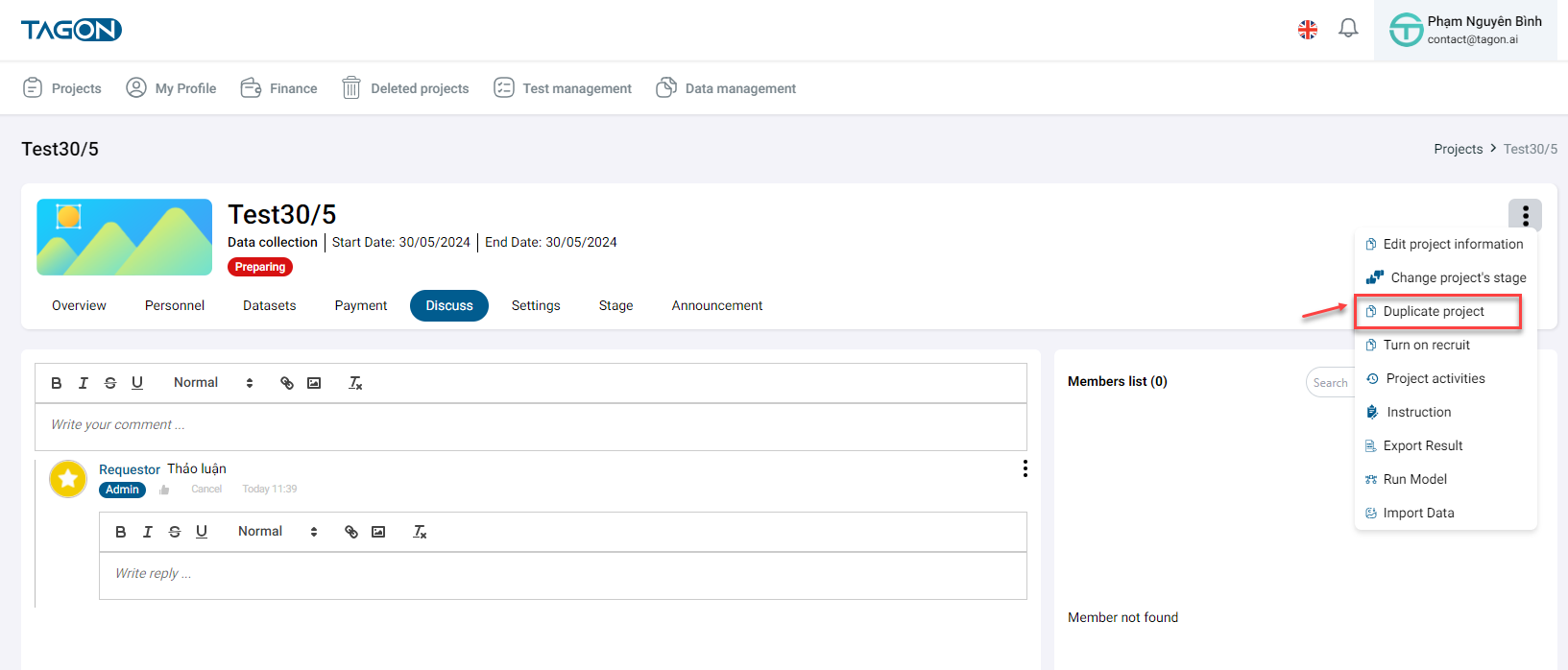
The screen will display the Copy Project screen
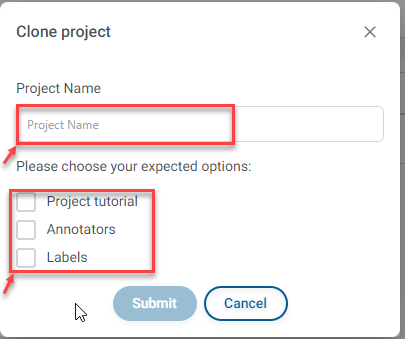
To duplicate the project, you need to
- Enter the Project Name
- Choose the information you want to use
-> When duplicating the project, ensure that the new project name is unique and select the information you wish to utilize in this project.
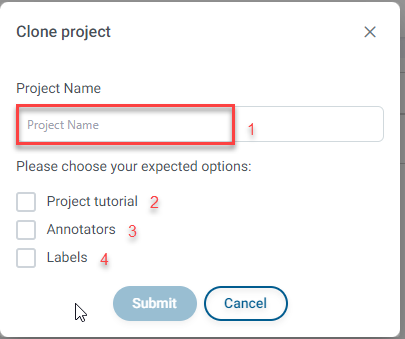
| STT | Field | Description |
|---|---|---|
| 1 | Project Name | Enter the name of the new project |
| 2 | Labeling Guide | Upon selection -> The labeling guide of the duplicated project will be utilized for the new project's labeling |
| 3 | Annotator | Upon Selection -> Annotators from the old project will be carried over to the new project |
| 4 | Labels | Upon Selection -> Labels from the old project will be used in the new project |
Once you have entered all the necessary information for the project duplication
- Click Agree to duplicate the project with the entered information
- Click Cancel to cancel the project duplication information
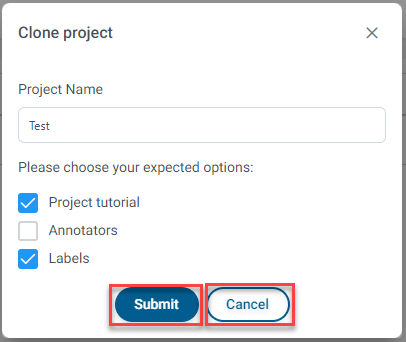
After clicking Agree to duplicate the project -> A success notification will be displayed -> Click on Project Details.
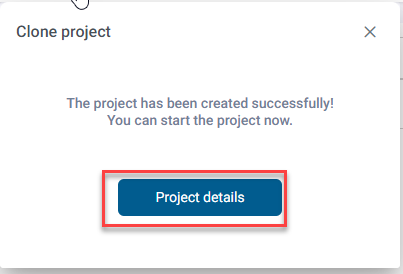
-> Display the Overview screen of the newly duplicated project.