Project Deletion
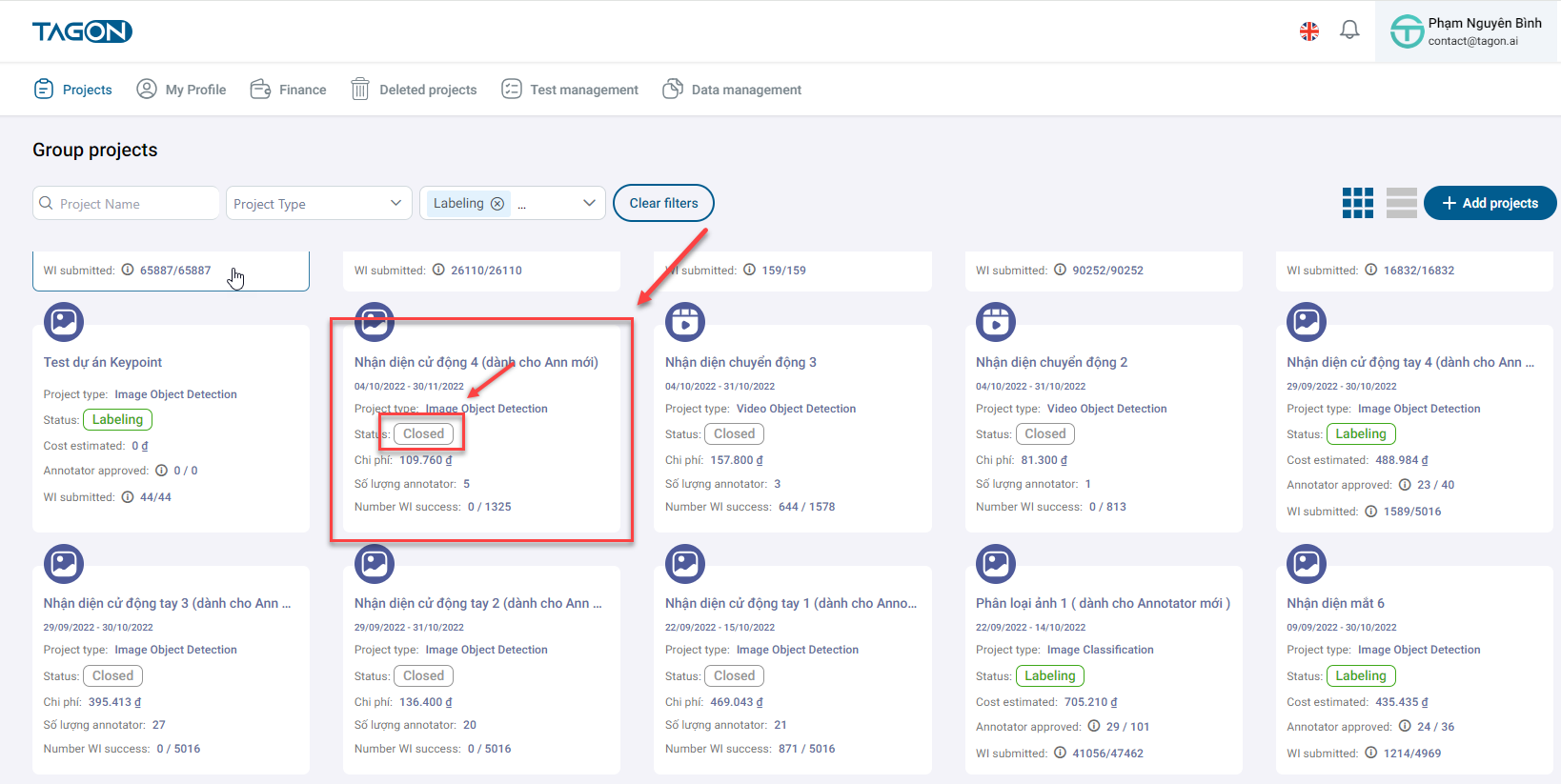
Projects that you want to delete must have been closed previously. Go to the Project List screen and find the project you want to delete.
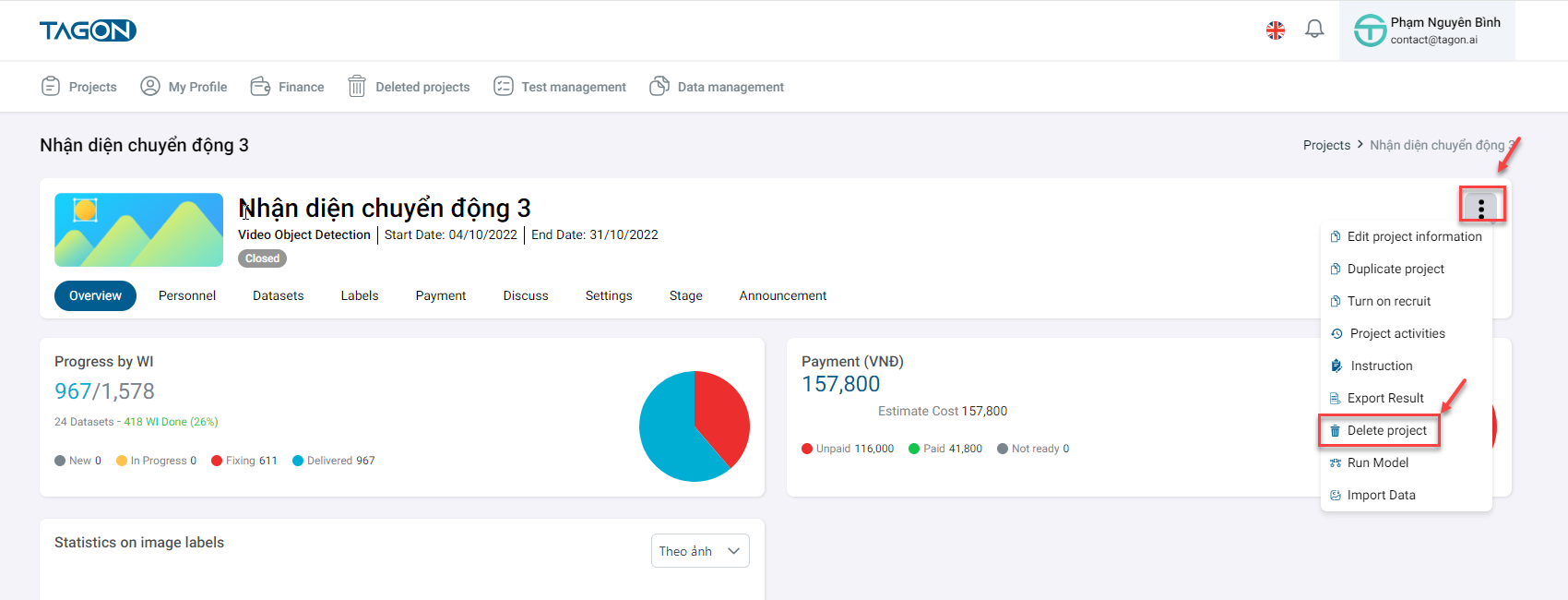
After closing the project, click on the three dots icon and then click on Delete Project to display the Confirmation screen.
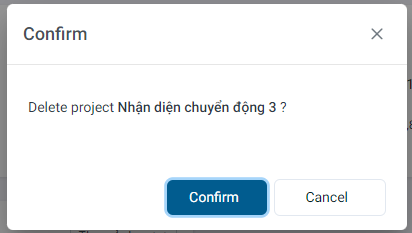
On the Confirmation screen, click Yes to delete the project. Click No to cancel this action. After deleting the project, you can view the deleted project in the Deleted Projects screen.
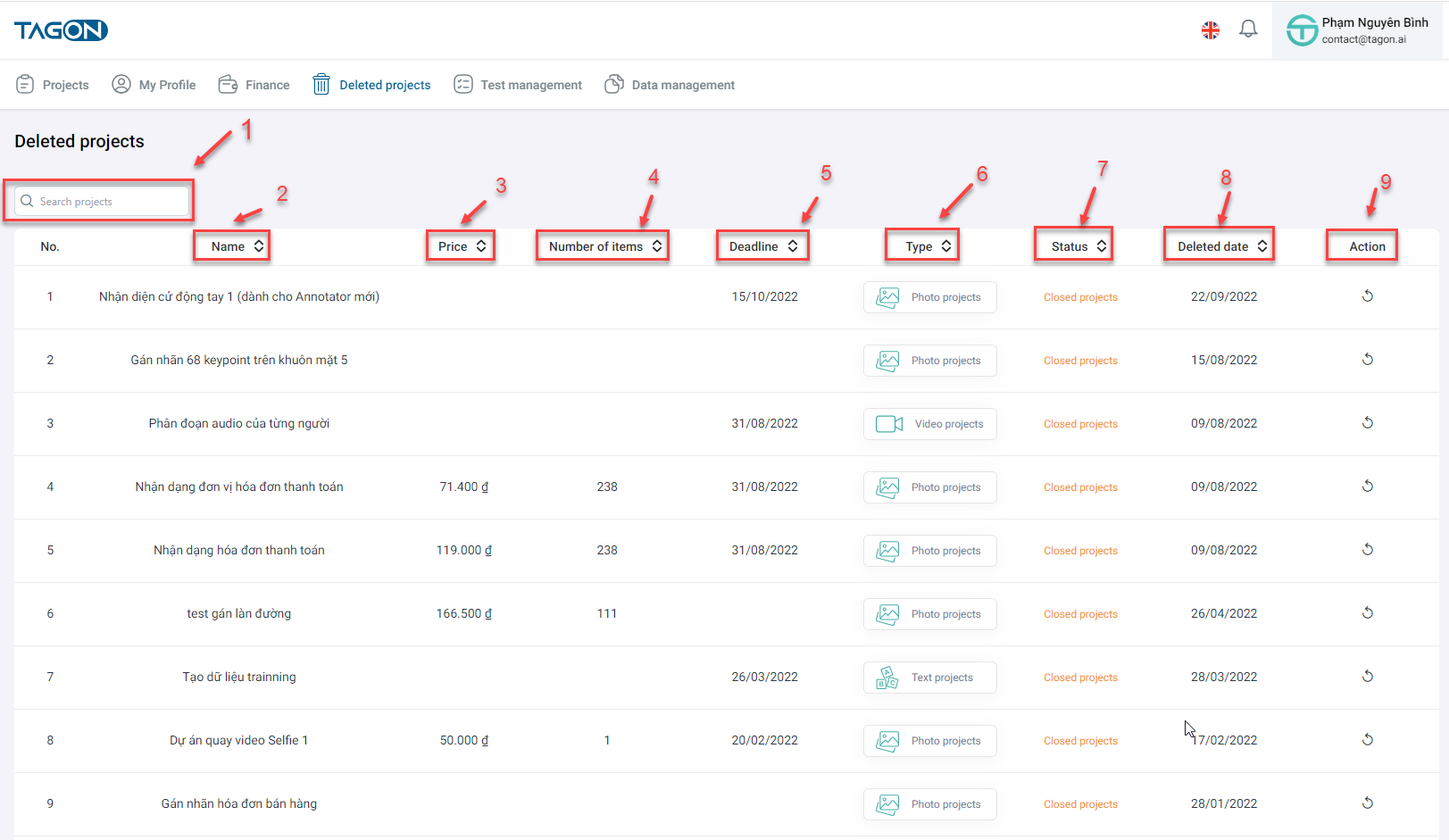
Deleted Projects
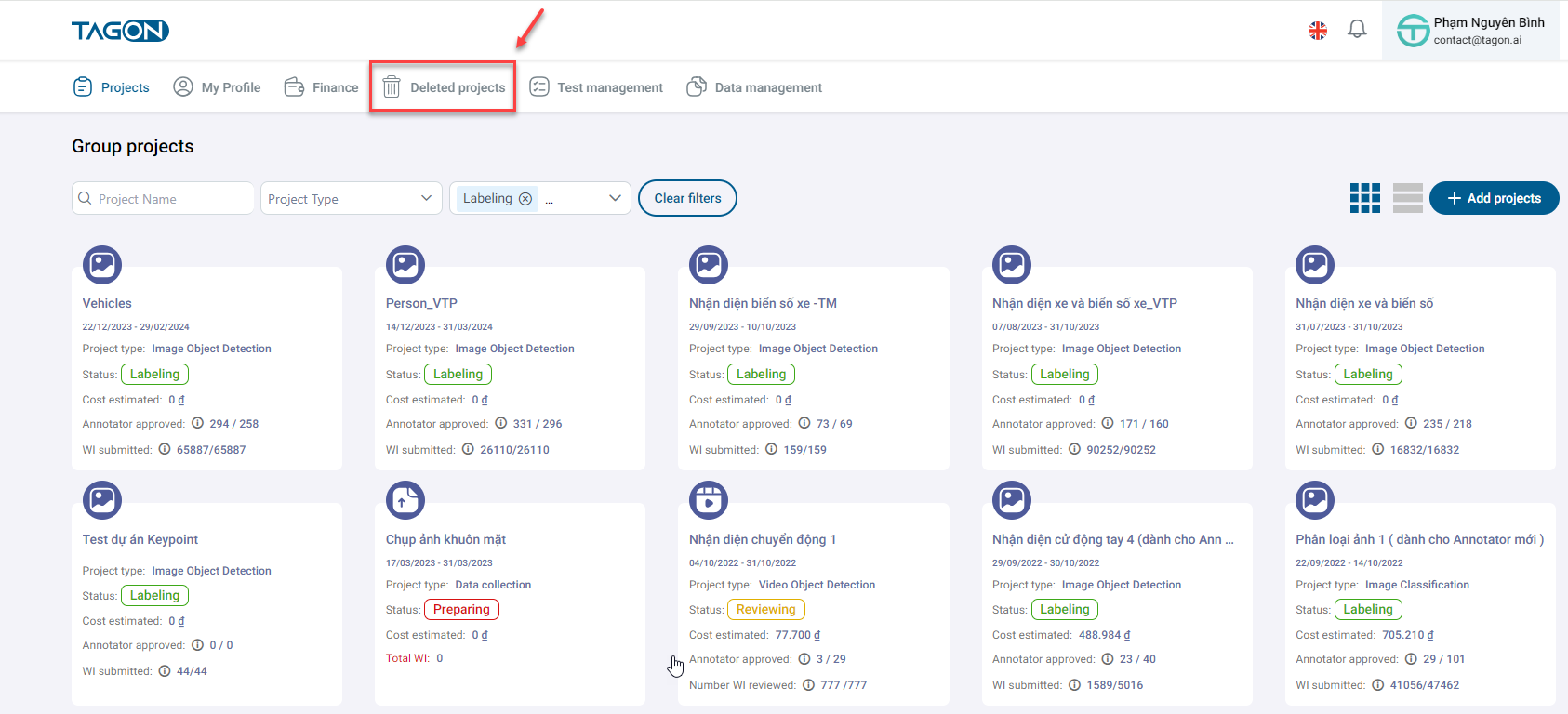
On the Project List screen, click on Deleted Projects.
| No. | Field Name | Description |
|---|---|---|
| 1 | Search Project | Search for the name of the deleted project |
| 2 | Project Name | Name of the deleted project |
| 3 | Value | Monetary value of the project |
| 4 | Number of Sentences | Number of sentences in the project |
| 5 | Deadline | Project completion deadline |
| 6 | Type | Project type |
| 7 | Status | Project status |
| 8 | Deletion Date | Date when the Requestor deleted the project |
| 9 | Action | Action to restore the project. Clicking on the action will display a confirmation screen to restore the project |